

Paso Doble – setting highlights and training
Competition Pasos follow a fixed phrase structure with up to three highlights. If Practice Studio knows where those spots are in a song, it can stop the music exactly there and play single parts for practice. For that you mark each song once. The app calls this “calibrating”.
- Stop at the highlight: In Practice and Powerpractice, a Paso can end exactly at the 2nd or 3rd highlight. The music cuts off hard, without a fade-out.
- Practise parts: In training mode you play only part 2, or parts 2 and 3, with a few seconds of lead-in so you can take position, and in a loop if you like.
Available from Pro. The app still labels the area “Experimental”.
The classic structure
Section titled “The classic structure”This is how España Cañí and many competition Pasos are built. Each number is a phrase with that many counts. The last phrase in bold is the highlight at the end of the section. The app later draws this row of numbers as a ruler under the song.
| Section | Phrases (counts) | ends with |
|---|---|---|
| Part 1 | 8 · 8 · 8 · 8 · 4 | Small highlight |
| Part 2 | 8 · 8 · 8 · 8 · 8 · 8 · 4 | Highlight 1 |
| Part 3 | 8 · 10 · 8 · 6 · 8 · 8 · 8 · 8 · 6 | Highlight 2 |
| Part 4 | 8 · 8 · 8 · 8 · 8 · 8 · 8 · 8 · 8 · 5 · 8 | Highlight 3 |
Not every Paso follows this pattern. For other songs you simply set the highlights yourself, see step 5.
Prerequisite: your Paso Doble music is linked to the app (see Setting up your dance music).
Calibrating a song
Section titled “Calibrating a song”-
Open “Paso Doble Training”
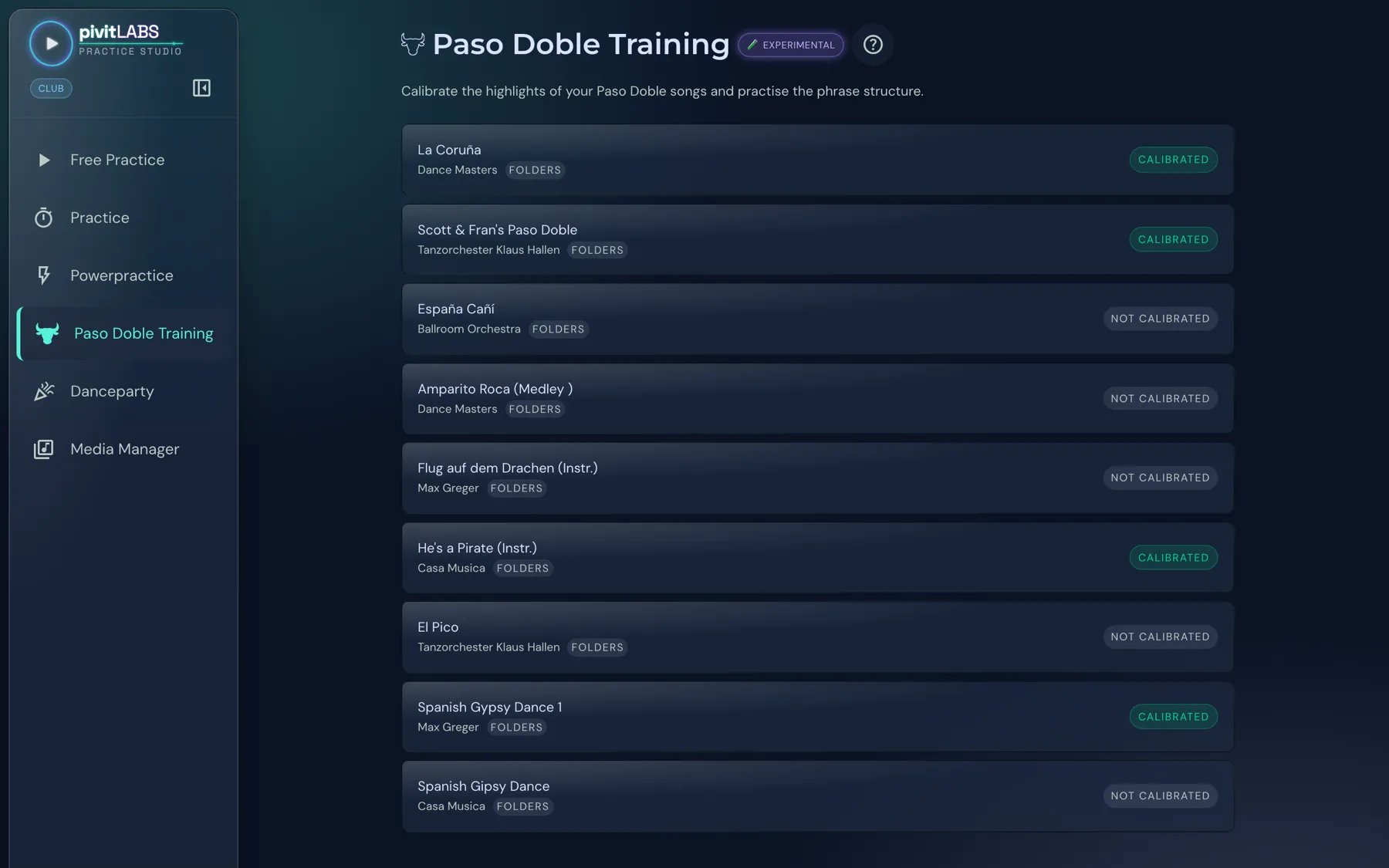
Click Paso Doble Training in the sidebar. You see all Paso Doble tracks in your library. On the right it says whether a song is already calibrated.
-
Choose a song
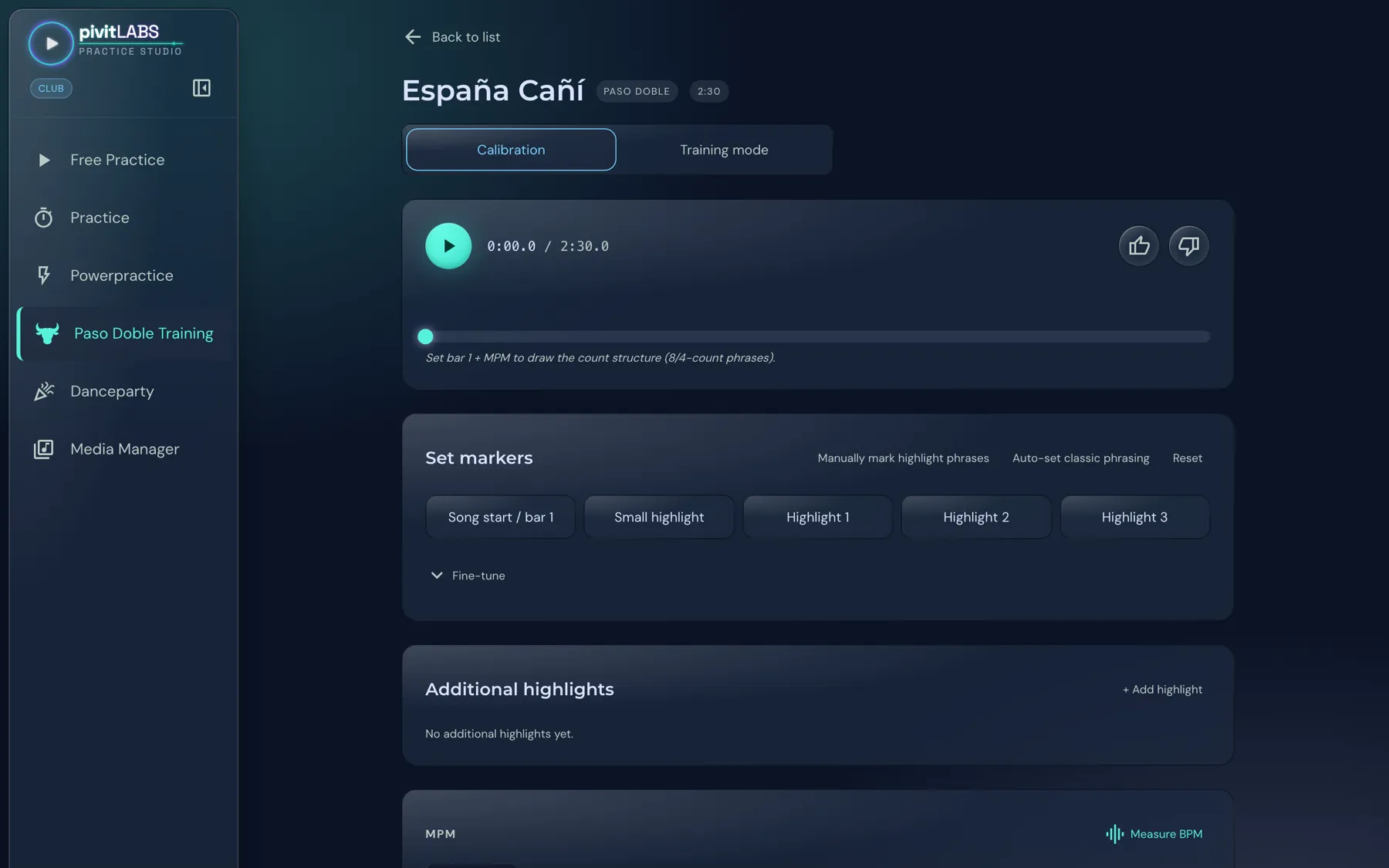
Click a song, for example España Cañí. The Calibration area opens with the player, the buttons for setting markers and, below them, the MPM row.
-
Check the tempo
At the very bottom is the tempo in measures per minute (MPM). If the app has already measured the song, it says Automatically detected. Otherwise click Measure BPM or enter the value yourself.
58 to 60 MPM is typical today; older recordings are often at 60 to 62 MPM. Without an MPM the app cannot calculate suggestions.

-
Tap bar 1
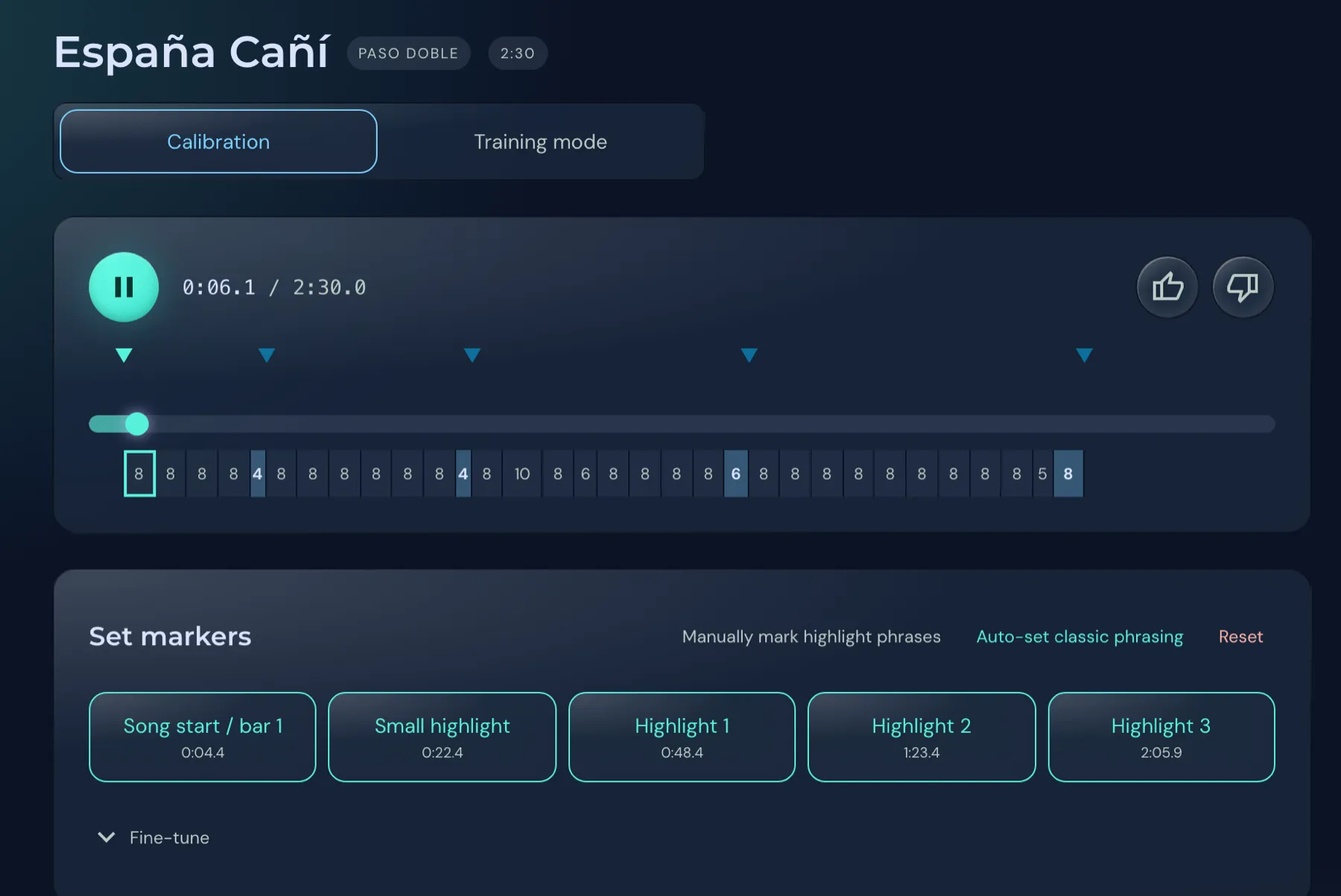
Press play. As soon as the first bar of the actual Paso sounds after the intro, click Song start / bar 1.
The app now draws the counting ruler and suggests all highlights. Suggestions appear as blue markers that are not yet confirmed.
-
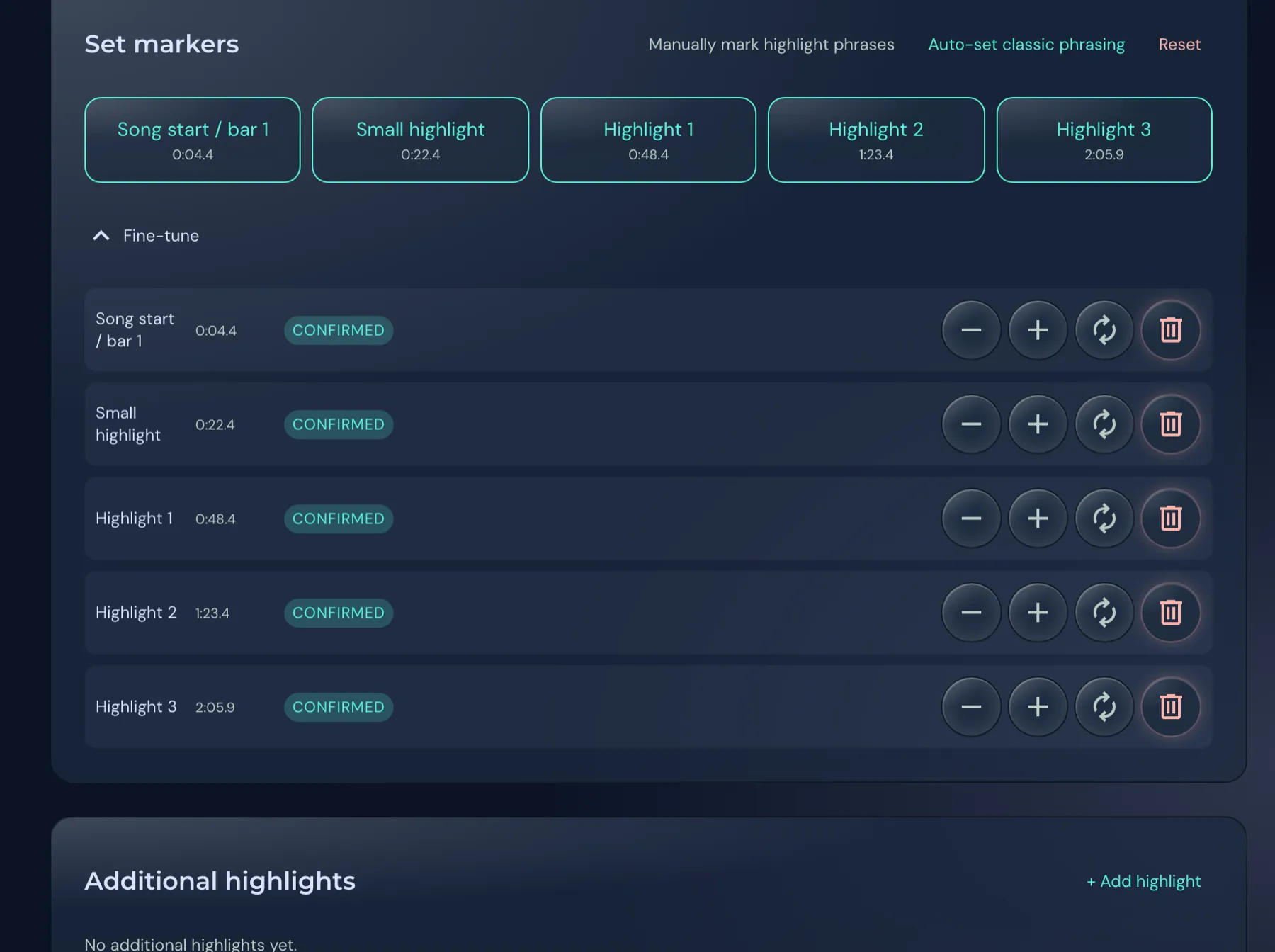
Accept the highlights or set them yourself
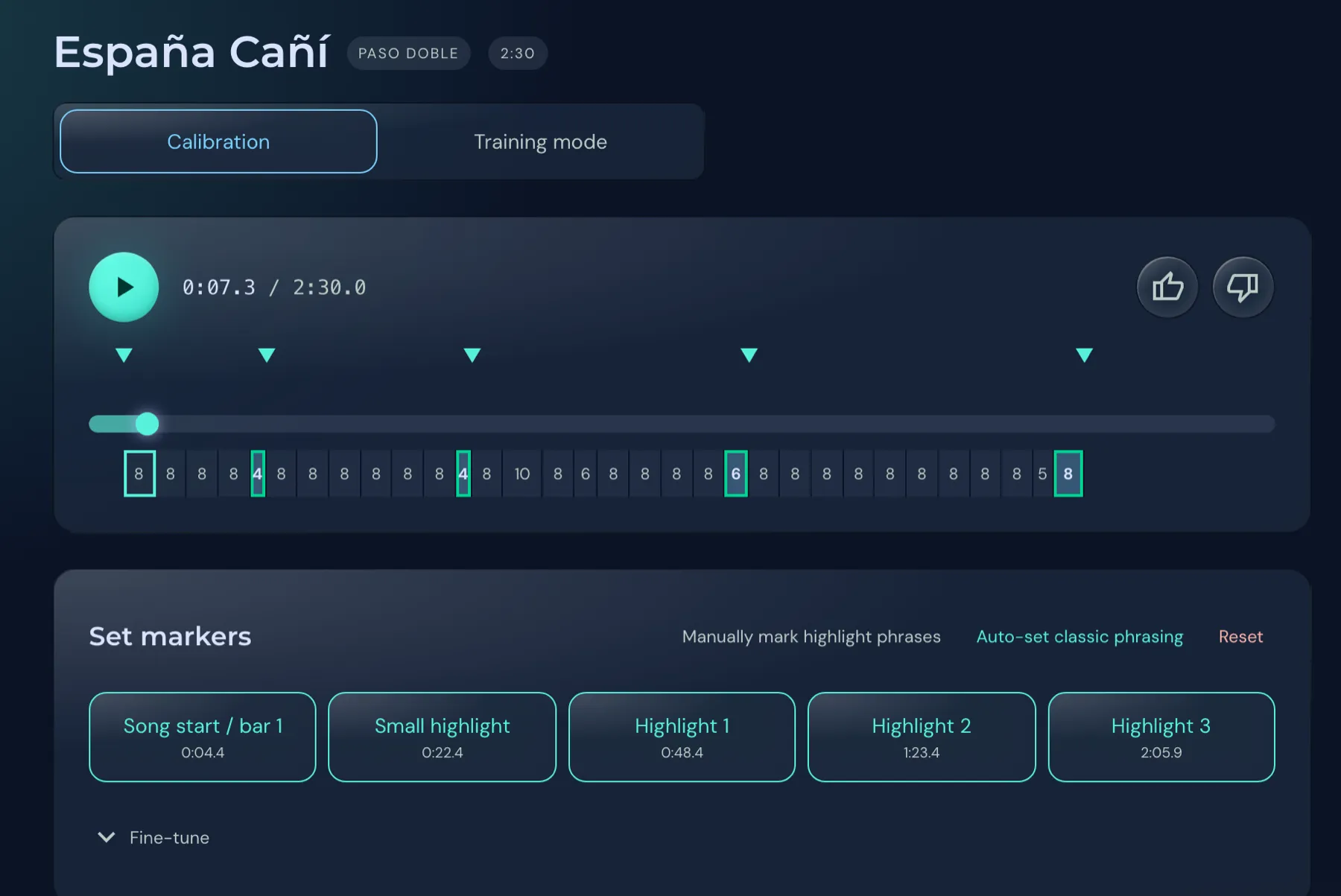
If the song follows the classic structure, click Auto-set classic phrasing. All markers are confirmed and marked in the ruler.
If a suggestion is wrong, press the matching button during playback exactly on the accent where the highlight ends. For Pasos with their own structure, choose Manually mark highlight phrases and click the right phrase in the ruler.
-
Fine-tune
Under Fine-tune you move each marker in steps of 100 milliseconds, listen to a short stretch around the marker with the circular arrow, or delete it. Everything is saved immediately; there is no Save button.
Under Additional highlights you can name further spots of your own. The note field remembers peculiarities, such as a long guitar intro. Reset deletes the song’s markers if you want to start over.
Practising in training mode
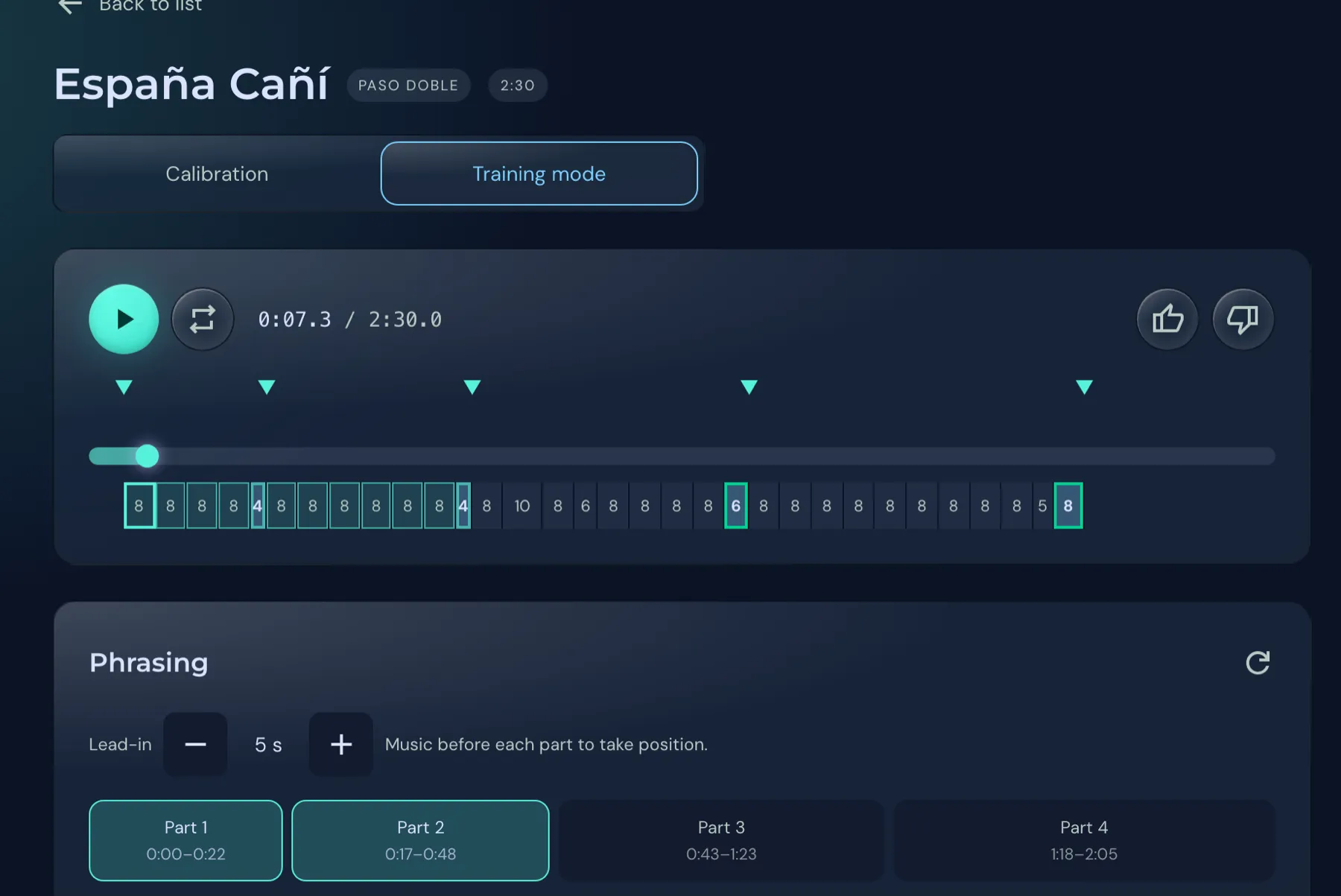
Section titled “Practising in training mode”Switch to Training mode at the top. It works as soon as bar 1 and MPM are set.
Under Phrasing you see parts 1 to 4 with their time span. Click the parts you want to practise, several if you like. Play then plays only those parts. At the end Highlight reached appears and the music stops.
Lead-in sets how many seconds of music play before each part so you can take position. With the repeat button next to play, the selection runs in a loop.
Stopping at the highlight in Practice
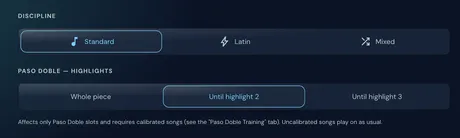
Section titled “Stopping at the highlight in Practice”Open Practice. Under Paso Doble — Highlights choose Whole piece, Until highlight 2 or Until highlight 3. The setting applies to Practice and Powerpractice.
The stop only works for calibrated songs. Pasos that are not calibrated run on as usual until the end of the round and fade out.
Good to know
Section titled “Good to know”- Practice, Powerpractice and Free Practice prefer Pasos that are already calibrated. If none are calibrated yet, they play every Paso as before. Danceparty deliberately keeps choosing at random.
- A calibrated song carries a badge in the bottom bar while it plays.
- The markers are kept when you rescan your library.
- It is enough to calibrate a few favourite Pasos. The others remain usable as normal.