

Loudness Normalization
Recordings from different sources are often different in loudness. With Loudness Normalization, Practice Studio measures the loudness of every song offline so that quieter and louder recordings sound similarly loud. You then no longer have to adjust the volume for every track.
The volume slider in the player bar is independent of it. It sets the overall level, while the normalization evens out the songs against each other.
You find it under Media Manager → BPM Analysis, directly below the tempo measurement.
How to set it up
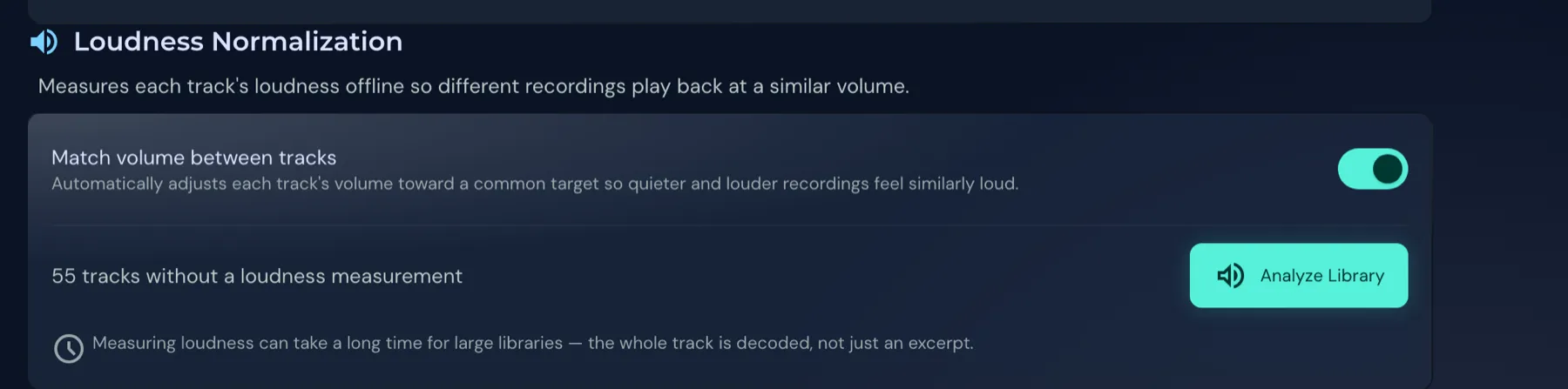
Section titled “How to set it up”- Switch on Match volume between tracks. The app then adjusts the volume of each song automatically toward a common target.
- Click Analyze Library. Next to it it says for how many tracks a loudness measurement is still missing, 55 in the picture.
- Wait until the measurement is done.
Measuring loudness can take a long time for large libraries because the whole track is decoded, not just an excerpt.
How it works
Section titled “How it works”- The app stores only a song’s measurement. How much a song is raised or lowered, it works out during playback. Your music files are never changed.
- The measurement follows the EBU R128 standard, which streaming services also use for loudness. It is a fixed calculation method, not an AI feature.
- The boost is limited so that a quiet song does not clip when it is turned up.
What does not work
Section titled “What does not work”- WMA files are skipped during analysis because they cannot be measured automatically.
- Copy-protected tracks from Apple Music cannot have their volume changed.
- On the iPad and iPhone, depending on the way it is played, an Apple Music track can only get quieter, not louder.