

License & Admin
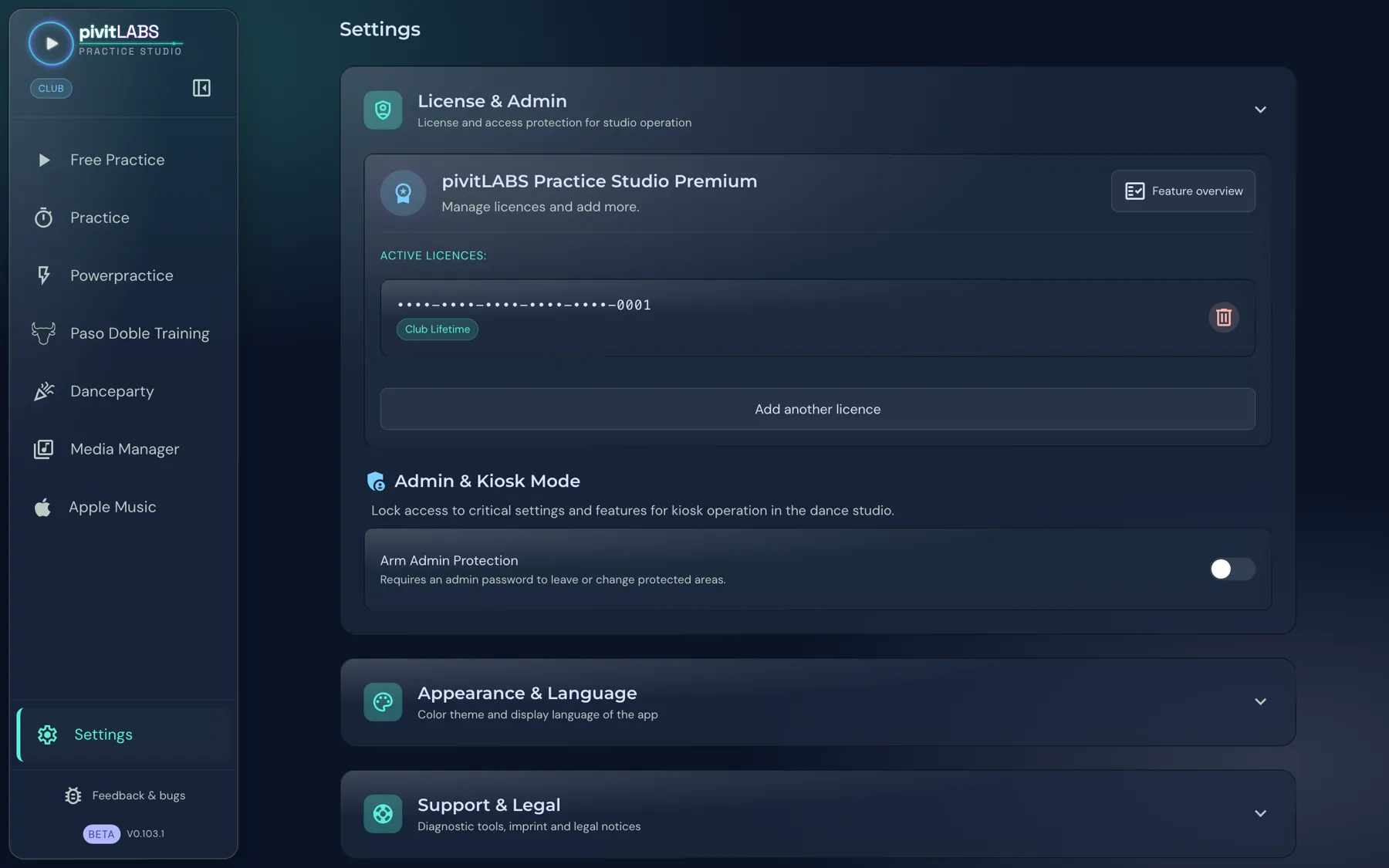
The License & Admin area in the Settings has two parts: licence management and the Admin & Kiosk mode.
Managing licences
Section titled “Managing licences”Under pivitLABS Practice Studio Premium you manage your licences:
- Active licences: The list shows each active licence with its package. The app shows the key only in shortened form. The trash can icon removes a licence.
- Add another licence: Here you enter another licence key. Several licences are possible.
- Manage subscription: Opens the management of your subscription.
- Feature overview: Shows which feature is in which package. You also find an overview under Packages at a glance.
Admin & Kiosk mode
Section titled “Admin & Kiosk mode”Admin & Kiosk mode locks critical settings and features so that nobody changes things in the dance studio. It belongs to the Club package.
- Switch on Arm Admin Protection. The app asks you for an admin password. It must be at least 4 characters long and is entered twice for safety.
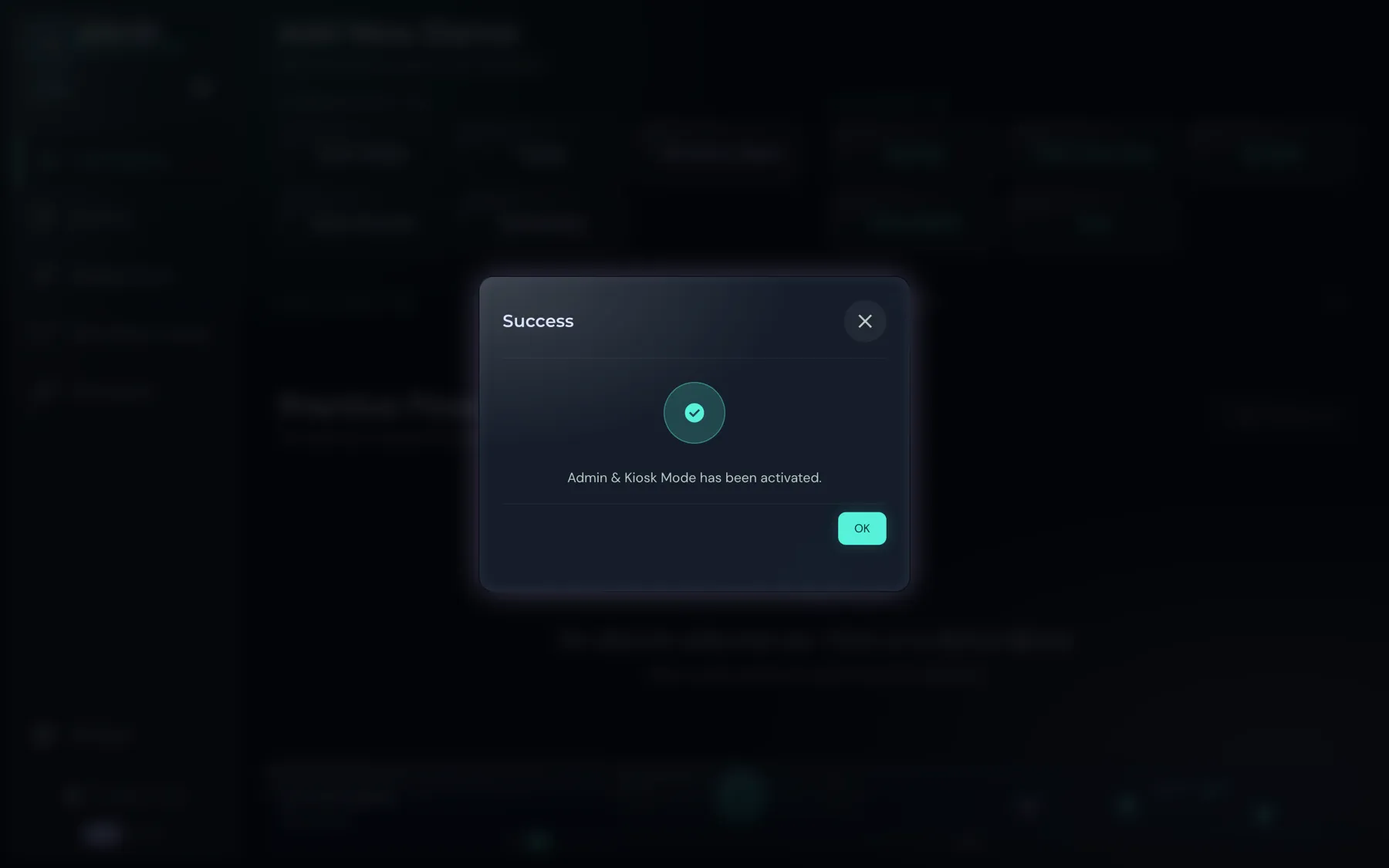
- A confirmation then appears: “Admin & Kiosk Mode has been activated.”
Once the protection is armed, more options are available:
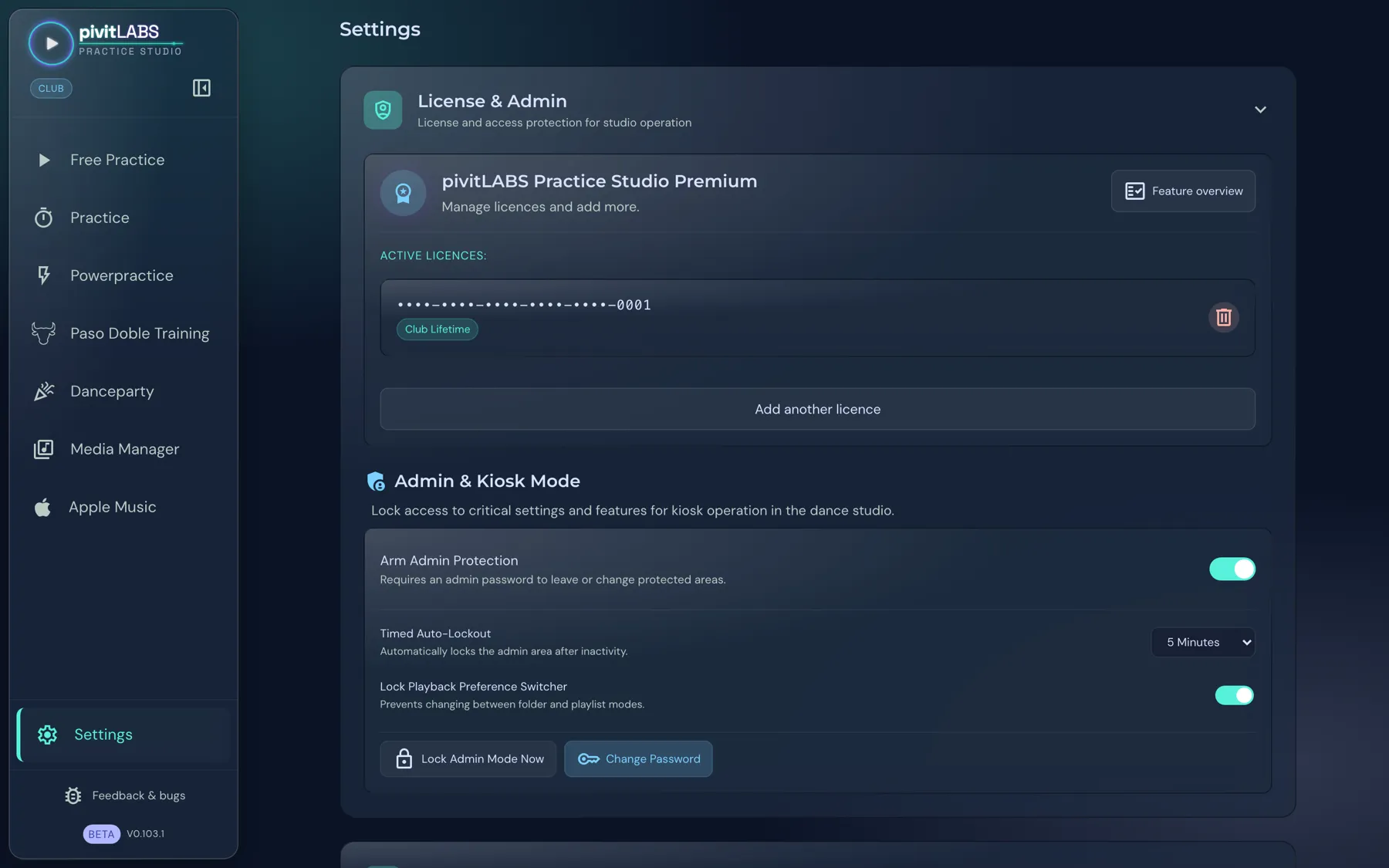
- Timed Auto-Lockout: Locks the admin area automatically after a period without input. In the picture it is 5 minutes.
- Lock Playback Preference Switcher: Prevents changing between folder and playlist modes, see Playback preference.
- Lock Admin Mode Now: Locks the area immediately.
- Change Password: Sets a new admin password.
A locked area asks for the admin password before you can open or change it.
Forgot your password
Section titled “Forgot your password”The password dialog has Forgot Password?. Enter your licence key there. If it matches, the app deletes the admin password and switches admin mode off. You can then set a new password.