

Sources & Mapping
Under Media Manager → Sources & Mapping you decide where the music for each dance comes from and correct assignments. You add new music here with the big button Add music. The steps for that are under Setting up your dance music.
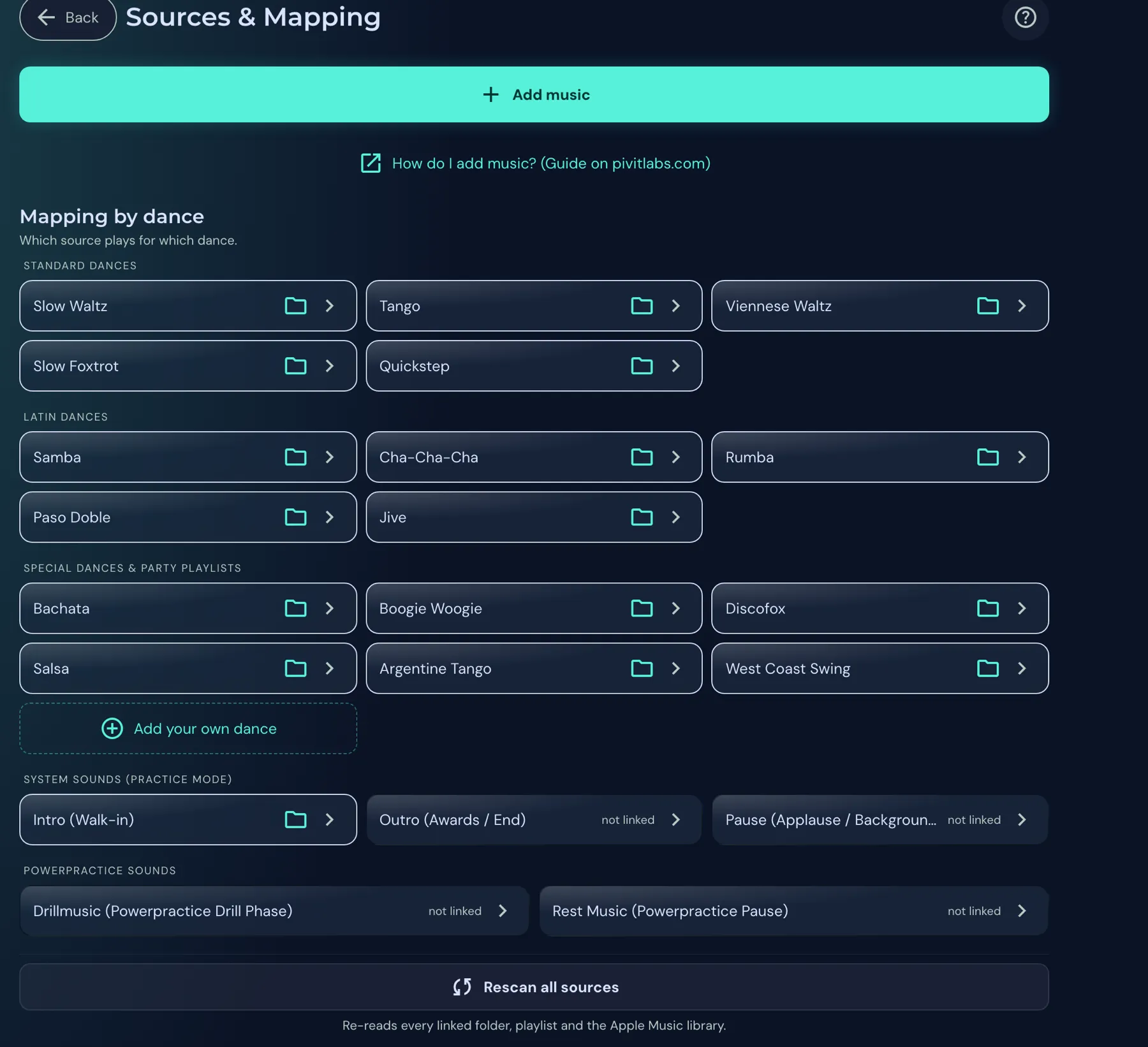
Mapping by dance
Section titled “Mapping by dance”Under Mapping by dance there is a tile for every dance. They are arranged in groups:
- Standard dances and Latin dances,
- Special dances & party playlists, for example Salsa, Bachata or Boogie Woogie, plus Add your own dance for a dance style that is missing,
- System sounds (Practice): Intro, Outro and Break,
- Powerpractice sounds: Drill music and Rest music.
On each tile, small icons show what is assigned to the dance: a folder icon for a linked folder, a playlist icon for a linked playlist (with a number if there are several), and a sparkle icon with the number of songs the auto scan recognised. In the picture, every dance has a folder linked. Dances without music say “not linked”.
Below the tiles, Rescan all sources re-reads every linked folder, playlist and the Apple Music library.
Changing the sources of a dance
Section titled “Changing the sources of a dance”Click a tile to open the dance.
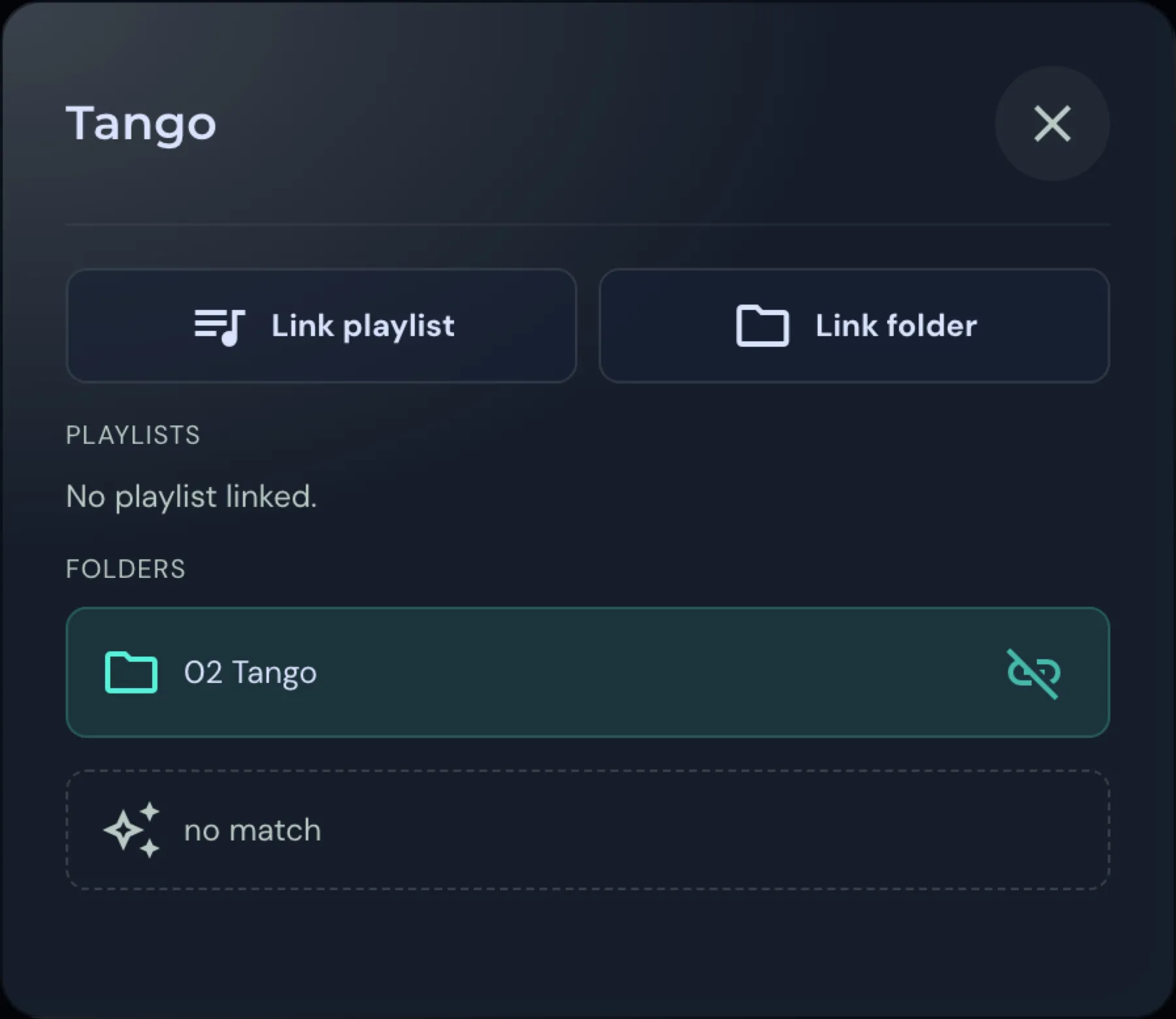
- With Link playlist and Link folder you add a source for this dance. A dance may have several sources. Together they form its music stock.
- Under Playlists and Folders you see what is already linked. The crossed-out chain icon next to a playlist removes the link again.
- The field below shows how many songs the auto scan assigned to this dance (“no match” in the picture).
WMA files
Section titled “WMA files”The WMA File Support section enables playback of .wma files. For that the app installs FFmpeg (about a 40 MB download). You only need it if your library contains WMA files. A green message shows when the support is installed.
The support applies to playback only. The app does not measure the tempo of WMA files automatically; you have to measure it manually.
Unknown genres
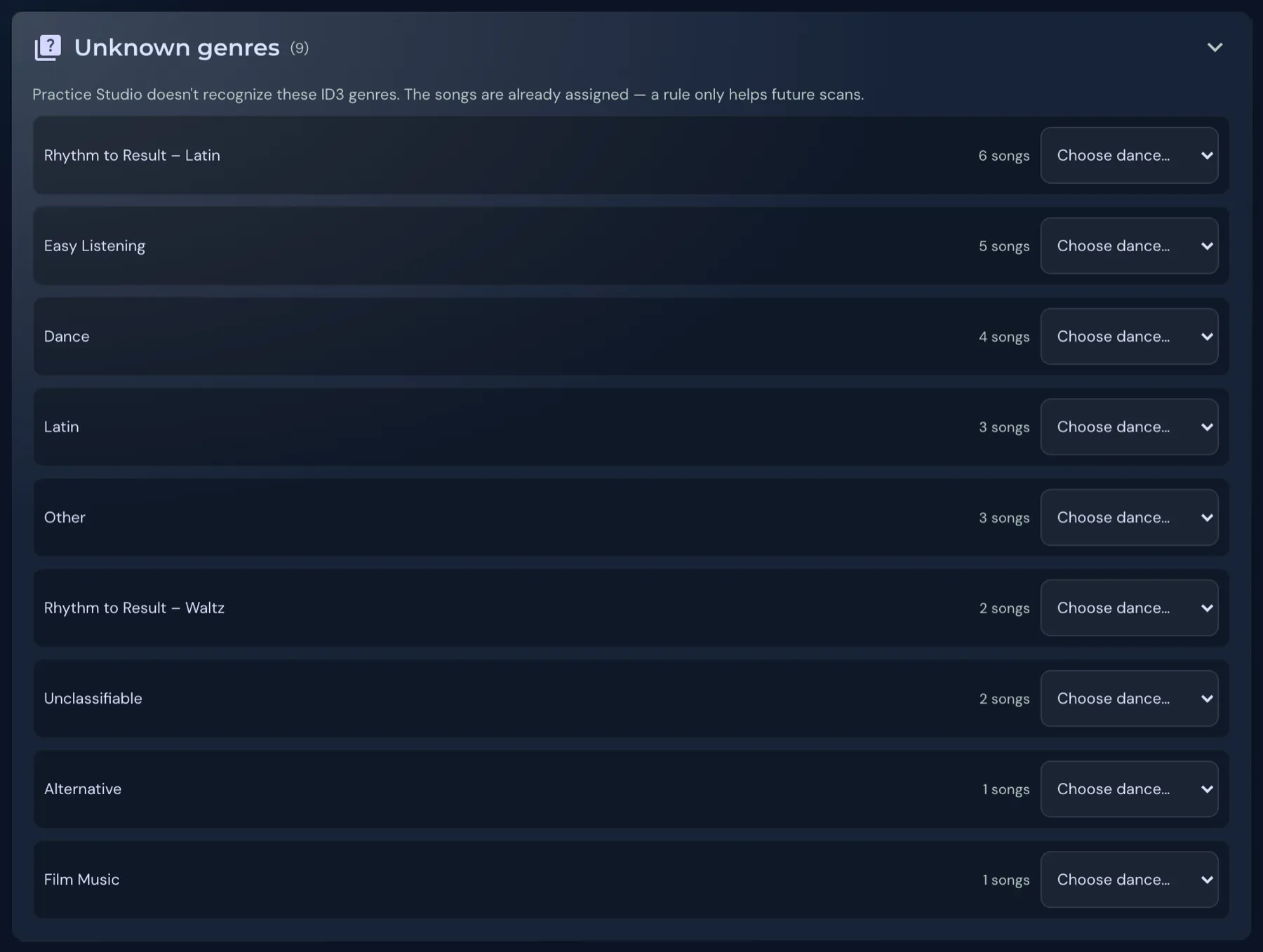
Section titled “Unknown genres”Under Assign there is the section Unknown genres. It lists genres from your files that Practice Studio does not recognise, with the number of songs. The songs are already assigned. With Choose dance… you set a rule for a genre so that future scans recognise it correctly.
Manage learned rules
Section titled “Manage learned rules”Under Manage learned rules you see the rules the app has learned and your manual song assignments.
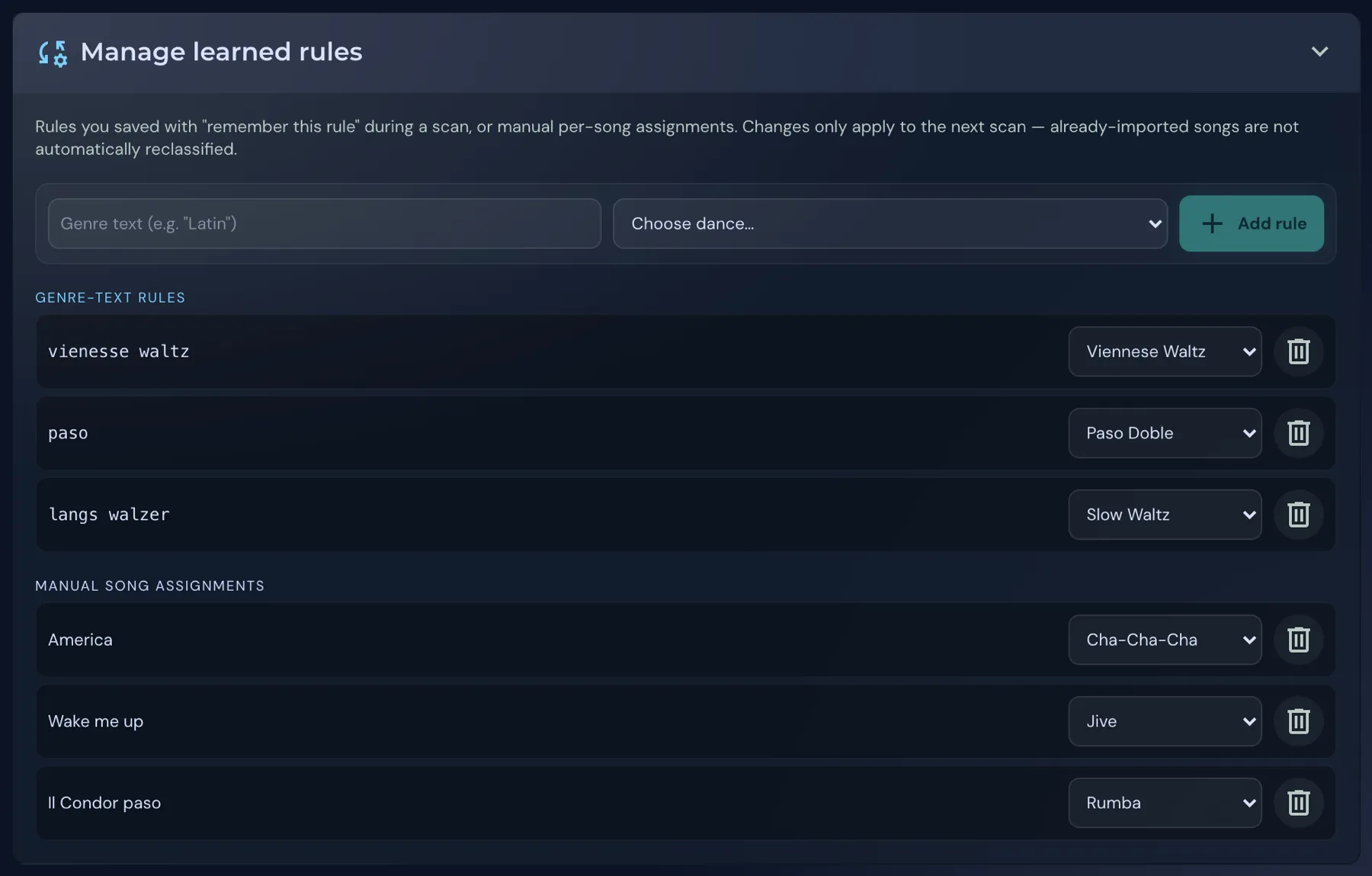
- Genre-text rules: A text that appears in the genre leads to a dance. In the picture, “paso” becomes Paso Doble. You create a new rule at the top: enter the genre text, choose a dance, Add rule.
- Manual song assignments: Songs whose dance you set yourself.
You can change each entry or delete it with the trash can. Changes only apply to the next scan. Songs that are already imported are not automatically reclassified.