
Setting up your dance music
For Practice Studio to play the right track for every dance, it has to know where your music is and which song belongs to which dance. You set this up once, and it stays saved. There are three ways, and you can combine them:
| Way | Suits you if … |
|---|---|
| Genre tag scan (recommended) | your music is in one big folder, however it is sorted. The app sorts the tracks into dances itself. |
| Link manually | you already have one folder or playlist file per dance. |
| Link Apple Music | your dance music is in Apple Music. On the iPad this is the recommended way. |
Video, 1:38 minutes, with sound (German): way 1, the genre tag scan, from opening the Media Manager to your first training round.
All three ways start in the same place: Media Manager → Sources & Mapping → Add music. The very first time you start the app, the same assistant also appears as the step “Set up music sources”.
Way 1: Genre tag scan
Section titled “Way 1: Genre tag scan”The scan reads the information stored in your music files and works out the dance from it. What it cannot assign with confidence, it puts in front of you to decide. It never guesses.
-
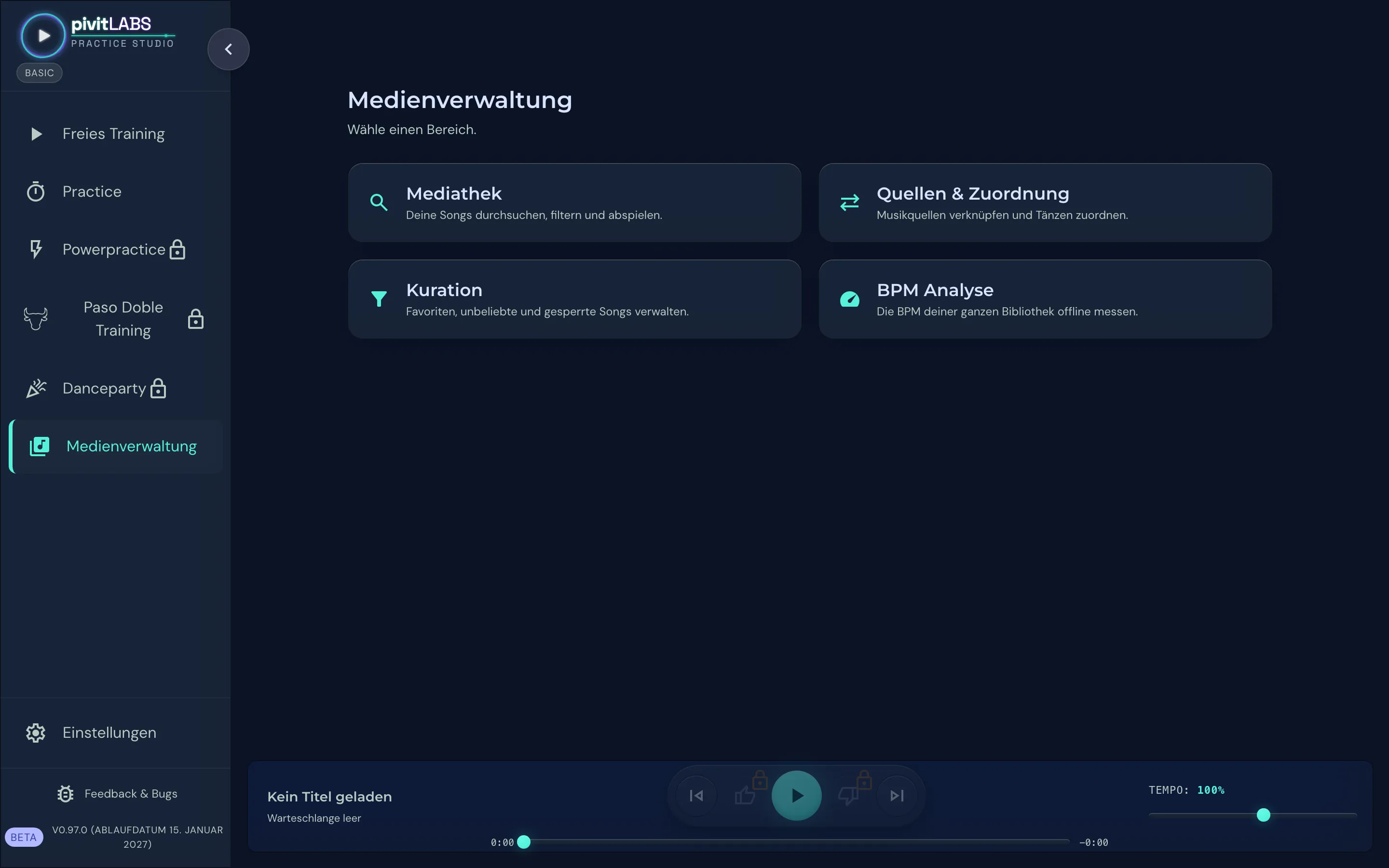
Open the Media Manager
Click Media Manager in the sidebar and then the tile Sources & Mapping.
-
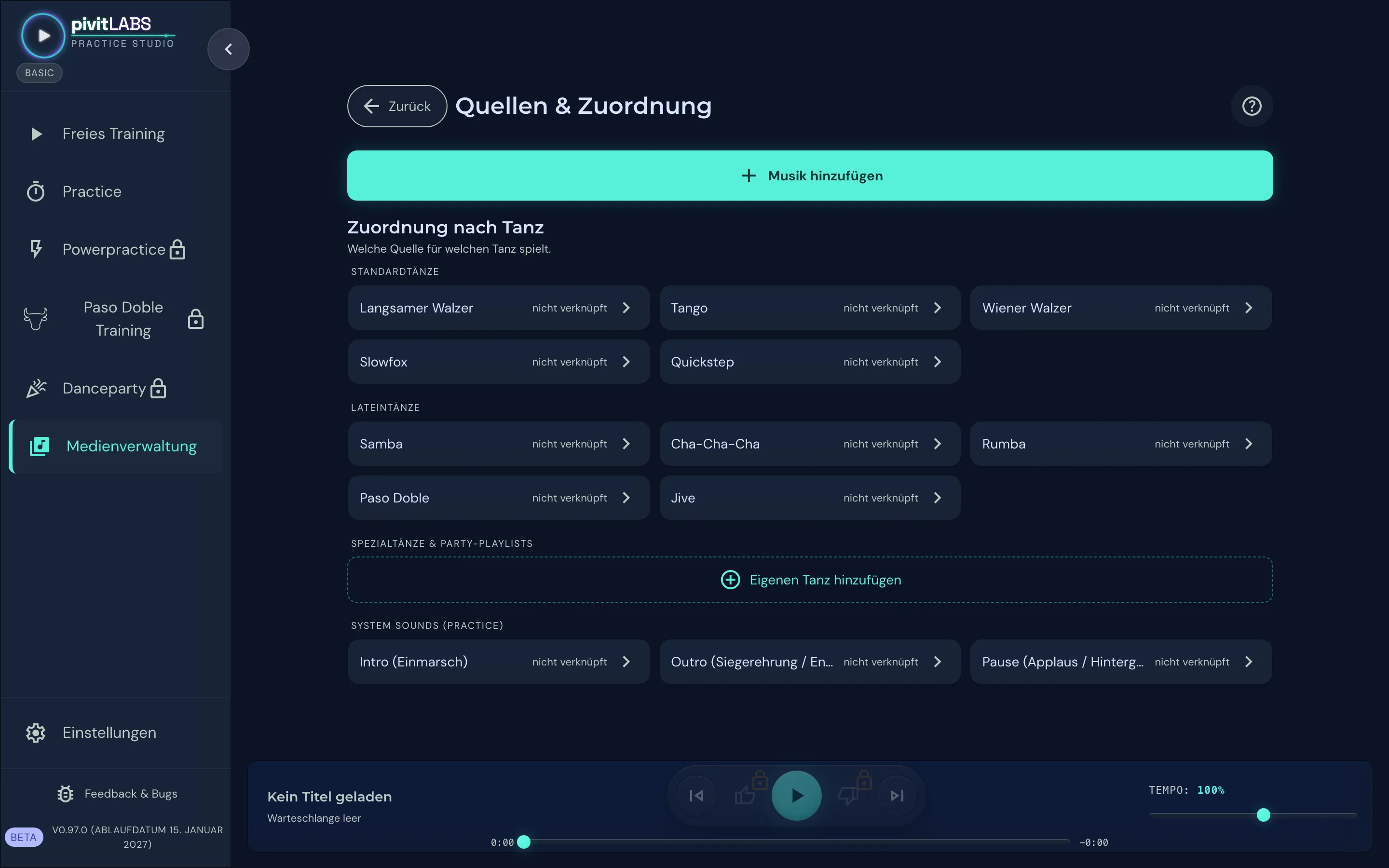
Tap “Add music”
At the top is the large button Add music. Below it you see all dances. As long as it says “not linked”, the dance has no music yet.
-
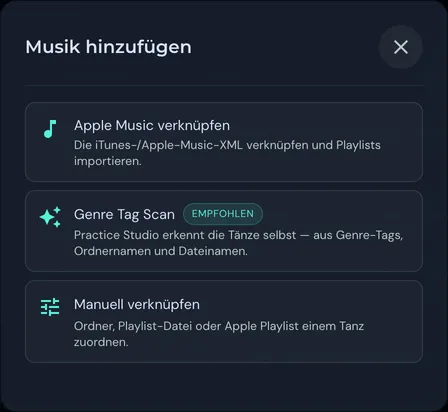
Choose “Genre tag scan”
The window offers the three ways. Choose Genre tag scan.
-
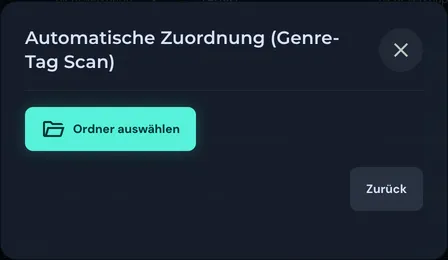
Choose your music folder
Click Choose folder and pick the top-level folder that holds your dance music. Subfolders are searched automatically.
Tablets and phones have no folder dialog. Android searches the device’s music folder. On the iPad, you first pick the folder from the Files app using the card Music storage location directly above this button.
-
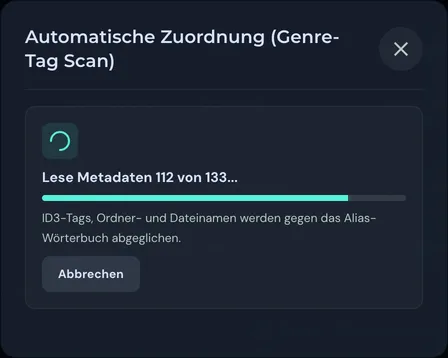
Wait a moment
The scan now reads every file. With a few hundred tracks it takes a few seconds, with several thousand a few minutes.
-
Check the result and assign what is uncertain
At the top you see how many songs were found and how many were assigned automatically, then the count per dance. Under Needs review are the songs for which the dance was not clear, grouped by genre.
For each group, choose the right dance in the menu Choose dance…. The whole group is then assigned at once. Groups that are not dance music you simply leave open: they are not imported.
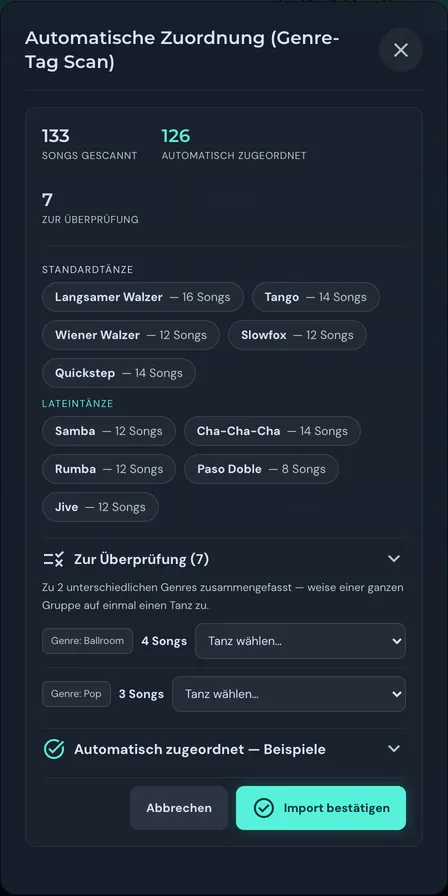
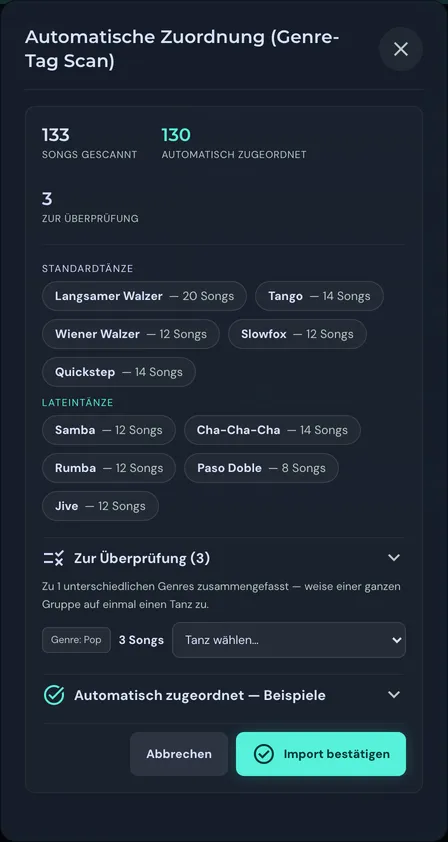
Above, the result right after the scan. Below, the group “Ballroom” was assigned to the Slow Waltz (now 20 songs instead of 16). The pop tracks stay open.
-
Confirm the import
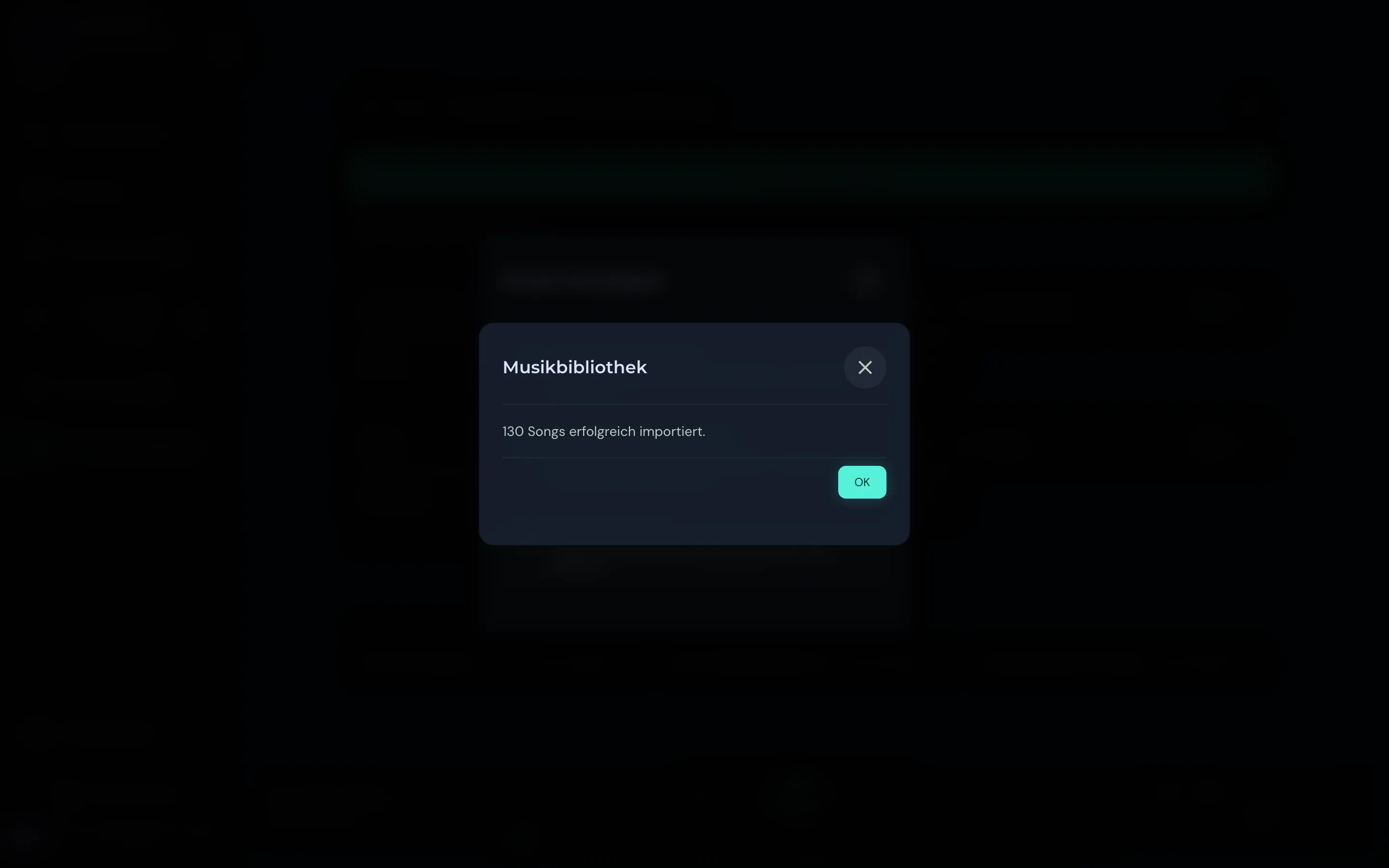
Click Confirm import. The app tells you how many songs were imported.
-
Done: get going
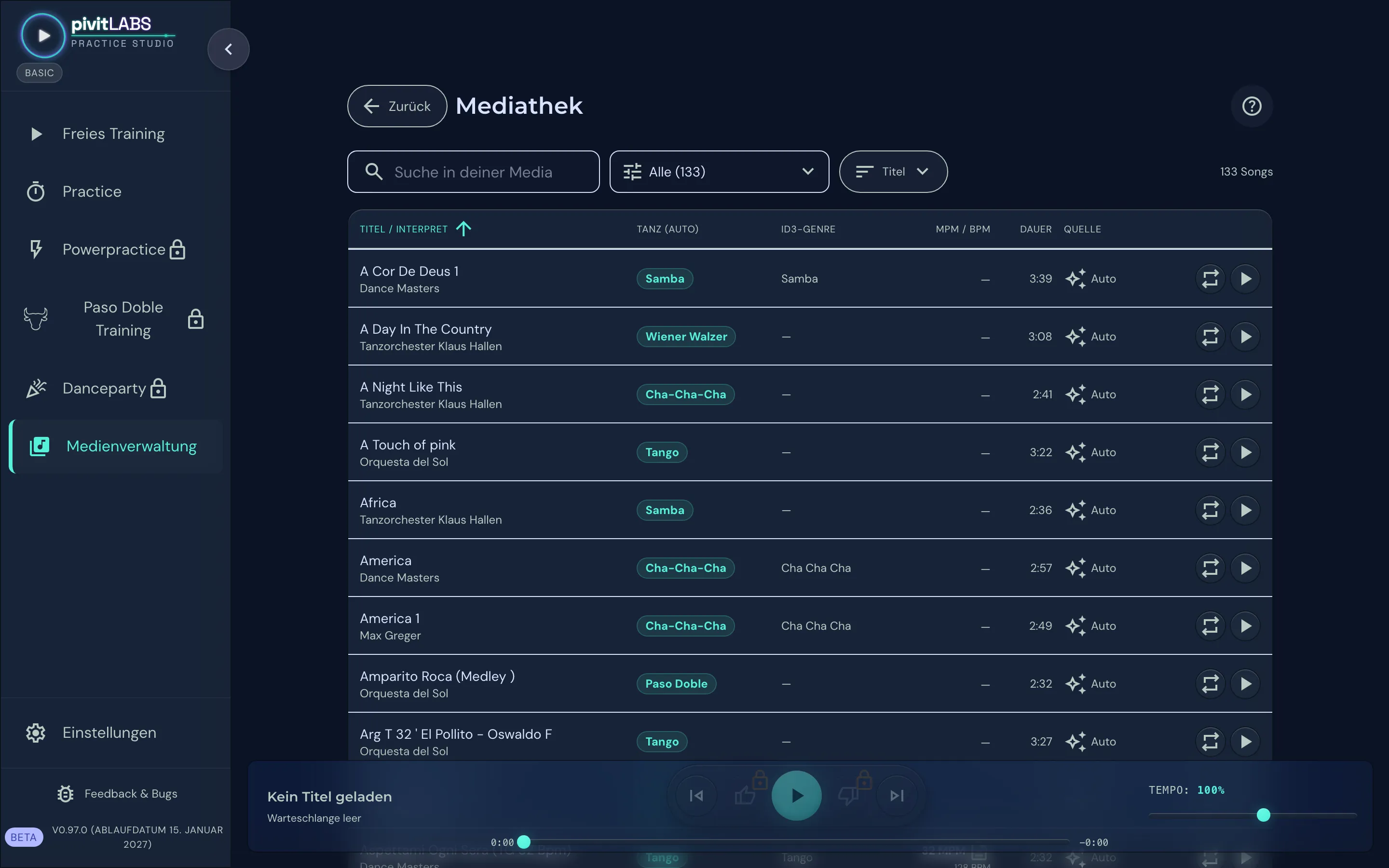
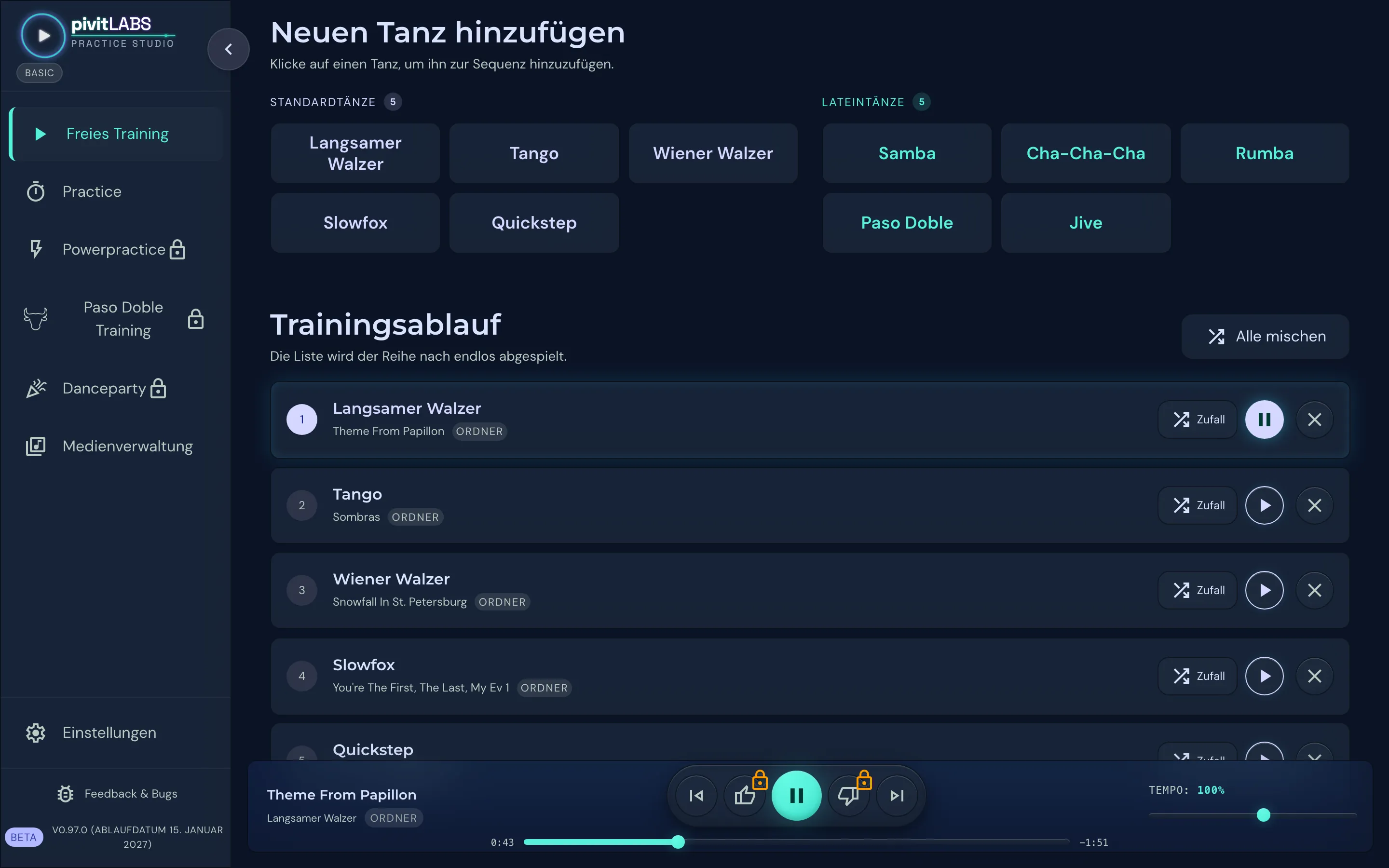
Under Media Manager → Library you now see all tracks with their dance. Free Practice, Practice and Danceparty play from this music from now on.
How the scan recognises the dance
Section titled “How the scan recognises the dance”A single hint is enough. The more of them your files have, the less you have to assign yourself later.
| Hint | Example | Note |
|---|---|---|
| Genre tag of the file | Slow Waltz, Cha Cha Cha |
as music programs show it, also in English |
| Dance abbreviation in the title | (SF 29), Tg 32, VW 58 |
as on many dancesport CDs |
| Folder name | 04 Slowfox/… |
the dance in the name of a folder |
| File name or album | Samba Hits 2024 |
when nothing else fits |
Way 2: Link manually
Section titled “Way 2: Link manually”If your music is already sorted by dance, for example a folder “Tango” and a folder “Rumba”, you assign each folder directly to its dance. You do this once per dance.
-
Choose the dance
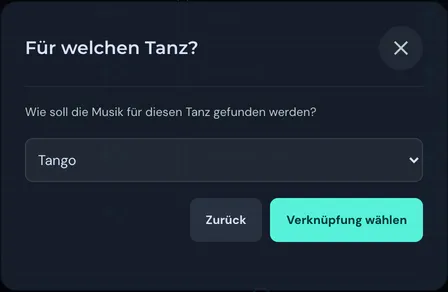
In the Add music window, tap Link manually, pick the dance and press Choose Mapping. At the bottom of the list you also find special dances such as Salsa or Discofox, and you can add your own dance.
-
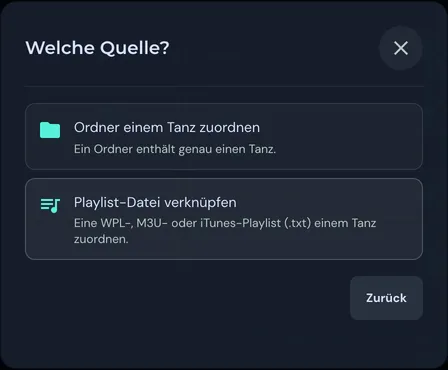
Choose a folder or playlist
Assign a folder to a dance opens the folder picker. On a computer you can instead use a playlist file (
.wpl,.m3u, or an iTunes playlist as.txt). If Apple Music is linked, Link Apple playlist appears here as well.A dance may have several sources, for example two folders and a playlist. Together they form its music stock.
Way 3: Link Apple Music
Section titled “Way 3: Link Apple Music”Here you assign Apple Music playlists to the dances. If a playlist is already named like a dance, such as “Cha Cha” or “Viennese Waltz”, the app recognises it and suggests the assignment itself.
On a Mac or Windows PC: export the library
Section titled “On a Mac or Windows PC: export the library”Apple Music no longer makes its library available by itself. Open Apple Music (iTunes on Windows) and choose File → Library → Export Library…. Save the file somewhere sensible, for example in your music folder.
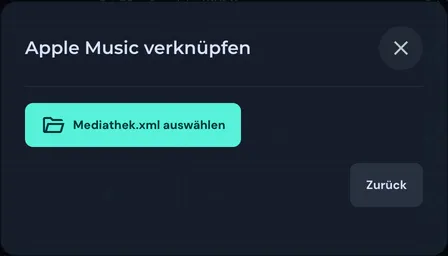
In Practice Studio: Add music → Link Apple Music → Choose Mediathek.xml and pick the file you just saved. Then you assign the playlists to the dances.
If you add new tracks in Apple Music, export the library again and re-read it in Practice Studio.
On an iPad or iPhone: allow access
Section titled “On an iPad or iPhone: allow access”Tap Link Apple Music and allow access to your library in Apple’s dialog. Your playlists are then assigned to the dances. You do not need an XML file here.
Playlists that exist only in the cloud are skipped during assignment. Download your dance playlists to the device in Apple Music first. Copy-protected tracks play normally, but their tempo cannot be changed and they cannot be faded out.
Good to know
Section titled “Good to know”- Practice Studio never changes your music files. All assignments, ratings and tempo measurements live only in the app.
- Bought new music later? Under Add music → Genre tag scan, tap Rescan next to the linked folder. Ratings, measured tempos and Paso Doble markers are kept.
- You can add more folders at any time. Existing folders stay linked.
- After the import it is worth running Media Manager → BPM Analysis → Analyze Library. The app then shows the tempo in measures per minute for every track.
- WMA files need a small extra component on the computer. You install it under Sources & Mapping in the section WMA File Support.
If something does not fit
Section titled “If something does not fit”A song ended up with the wrong dance. Open the Library, click the pencil (Edit) next to the song and set the right dance. The app remembers the correction, even if you rescan the folder later.
After the scan, a lot of songs are “Needs review”. Then your files carry little genre information. Assign the groups once. If your music is already in dance folders, “Link manually” is the faster way.
Nothing was found in the scan (Android). The app needs permission to access your music. Confirm the question about access to music and audio, or allow it later in the Android settings under Apps → Practice Studio → Permissions.
“This folder is already linked.” The folder was scanned before. Tap “Rescan” next to it to pick up new tracks. That way nothing is imported twice.