

Apple Music
With the Apple Music browser you find, play and control the tempo in one program. The playlist names are read, and for each one the app suggests the matching dance. Several playlists per dance are possible.
Available from Pro.
The Apple Music browser
Section titled “The Apple Music browser”Click Apple Music in the sidebar. There you browse your playlists and play them without assigning them to a dance first.
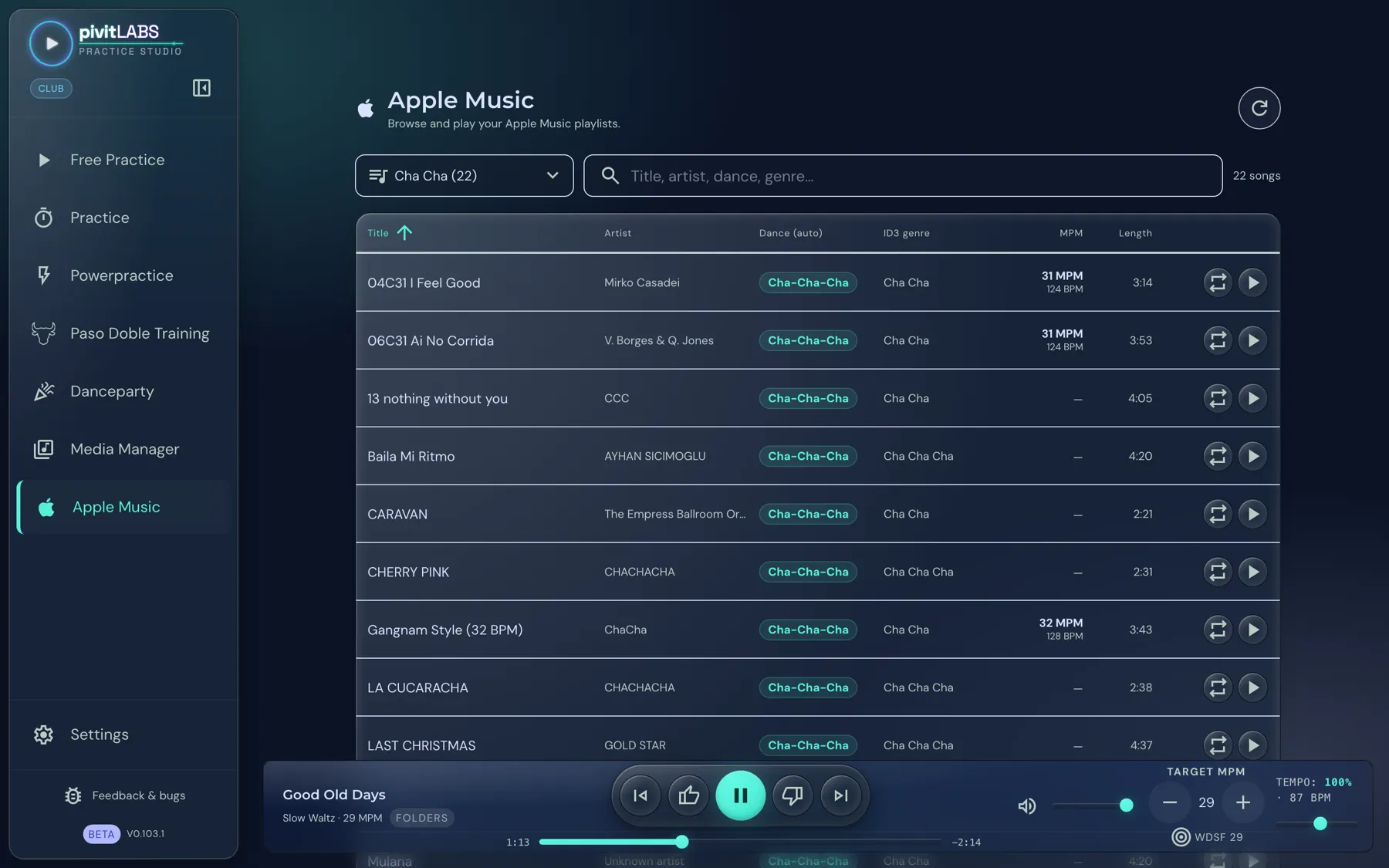
- Choose a playlist: The selection field at the top left lists every playlist with its song count, “Cha Cha (22)” in the picture. Where it is supported there is also Show all tracks. On other devices the app shows playlists only.
- Search: The field next to it searches title, artist, dance and genre. On the right it says how many songs the list currently shows.
- Sort: Click a column heading. The arrow shows the direction.
- Reload: The circular arrow at the top right re-reads your playlists, for example after changes in Apple Music.
The columns
Section titled “The columns”| Column | Meaning |
|---|---|
| Title | Name of the song |
| Artist | If the artist is missing, it says “Unknown artist”. |
| Dance (auto) | The dance of the song. A hint on the entry says where it comes from: assigned manually, taken from your library, assigned automatically, or no assignment found. |
| ID3 genre | The genre stored in the file. |
| MPM / BPM | The measured tempo in measures per minute and in beats per minute. |
| Length | Length of the song |
At the end of each row are Play and Repeat. For songs that are not available locally or are copy-protected, a crossed-out cloud appears instead of the buttons. They cannot be played this way.
There is no Apple Music area on Android.
Exporting the library on a Mac and linking it
Section titled “Exporting the library on a Mac and linking it”Apple Music no longer makes its library available by itself. For Practice Studio to read it, you export it once as a file. The video shows the whole way: the export in Apple Music and the linking in Practice Studio.
Video, 2:26 minutes, with sound (German): export the library in Apple Music, link it in Practice Studio and assign the playlists to the dances.
The steps at a glance:
- Open Apple Music (iTunes on Windows) and choose File → Library → Export Library…. Save the file, for example in your music folder.
- In Practice Studio: Media Manager → Sources & Mapping → Add music → Link Apple Music → Choose Mediathek.xml and pick the saved file.
- Assign the playlists to the dances. If a playlist is already named like a dance, such as “Cha Cha” or “Viennese Waltz”, the app suggests the assignment itself.
If you add new tracks in Apple Music, export the library again and re-read it in Practice Studio.
On the iPad and iPhone
Section titled “On the iPad and iPhone”You do not need a file there. Tap Link Apple Music and allow access to your library in Apple’s dialog. Your playlists are then assigned to the dances.
Playlists that exist only in the cloud are skipped during assignment. Download your dance playlists to the device in Apple Music first.
For all the ways to add music, see Setting up your dance music.